Friday, 22 July 2011

Stories of Chat Moss, Irlam, Salford

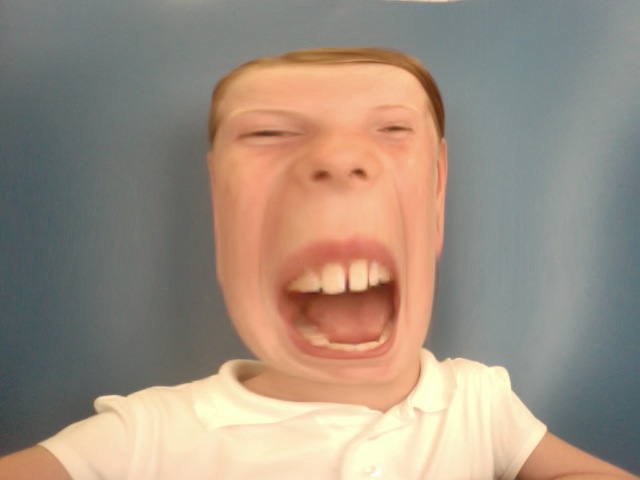
The madman of Chat Moss
A Y6 class create films based on the oral histories of people who had lived and worked on Chat Moss, a large area of peat bog on the outskirts of Manchester.


Over 5 days, pupils created a series of films using recorded voices, archive photos, poetry, drama and dance. The films featured bog monsters, scooter riders, rat-catchers and Michael Jackson cameo!


These creative media sessions was part of the 'Stories of Chat Moss Project' funded by Salford Museum.

Friday, 15 July 2011

Creative Partnerships Residency, Derby

A Ghost from a haunted school film 
I've completed an exciting year long Primary school residency, turning pupils and teachers into creative media specialists!


The 'Media Moguls' pupil group cascaded their skills to other pupils and teachers too! After they became confident at podcasting, digital imaging, and using ICT equipment, they  created written user guides and videos.


We worked together on two whole school creative media projects, one involved storytelling using stop motion animation and digital imaging manipulation Alice in Wonderland theme.


A Media Mogul!
I also delivered one to one training with teachers, and worked alongside teacher staff in classrooms. Part of the residency also involved me hosting CPD sessions during INSET days.


Both staff and pupils grew in confidence across a wide range of media, raised achievement and helped to develop a creative curriculum. 


Friday, 1 July 2011

Adding a Narration in Windows Movie Maker XP


1. Plug in your microphone and check that your sound card is working (your system should prompt you)


2. Open Windows MovieMaker


3. Click on the 'Tools' Menu , then 'Narrate timeline'.


4. Check 'Front Microphone' from the Microphone drop down menu


5. Click 'Start Narration' and speak into your microphone.


6. When finished click 'Stop Narration'.


7. Press the play button to listen to your narration 


Check out Adding A Narration to Your Movie for more help.

Thursday, 16 June 2011

Free Software - GIMP

GIMP, meaning 'GNU Image Manipulation Program' is free digital imaging software that's a lot like Adobe Photoshop.


You can do all the basic stuff like image cropping, resizing, brighten/darken, changing exposure, saturate desaturate, adding text etc.


However, its the filters and the layering system that allows you to really go to town on your digital photos!


I've done a brief video tutorial on how to use layers in GIMP to replace backgrounds here.

Its free to download from the GIMP website

Monday, 13 June 2011

Creative Partnerships Residency, Halifax

Can you be creative in teaching Maths? Yes you can!
Y7, Y8 and Y9 pupils and their Maths teacher were transformed into media makers at a secondary school in Halifax. I helped them 'become' numbers - 'become' maths, as they solved problems through filmmaking and role play!
Pupils learning was transformed, they increased their understanding of probability, averages and improper equations.

Saturday, 4 June 2011

From Primary to University!


Sheffield Hallam University

I've just completed a project that used a creative approach to encouraging Primary school pupils to consider going to University!

I involved a class of Y6 pupils from Barnsley in role-play games and video making aimed at exploring thoughts and feelings  about being in the grown-up space of a big City University.

Pupils created designs for their perfect classroom and had chance to edit some of the video they had shot. A fun time was had by pupils and teachers. They all received a DVD memento of their experience. Maxine Greaves, Equality and Community Engagement Manager at Sheffield Hallam University hosted the event.


Friday, 20 May 2011

An Easy Stop Motion Animation Project

Equipment Needed: Digital Camera, Small Tripod, Table, Set or Backdrop, Characters, Editing Software


1. Before you start, press the menu button on your camera and set your picture quality to 2 mega pixels


2. Place you camera on a tripod in front of your Set or backdrop (make sure the maximum amount of light is falling onto your Set.


3. Decide what the physical movements you want for your characters and take a picture. 
IMPORTANT: Keep your camera and tripod still during picture taking. Get someone to hold the base legs of the tripod.


4. Take 50 pictures for 25 seconds of action


5. Open your software and copy your pictures to your computers hard drive.


6. Open your editing software and import your pictures


7. Ensure that you set your still image options to 0.5 seconds (In Windows moviemaker XP  'Options', 'Advanced' 'Picture Duration  In iMovie 09 - 'Project properties', 'Timing' 'Photo Duration'.


8. Place your pictures in numerical order on the timeline


9. Play your animation on the timeline


10. Checkout the 'Adding a Narration' post to add a dialogue soundtrack to your animation.